-1.png?width=160&height=50&name=Jeenie%20Logo-FullColor%20(7)-1.png)
In this Article:
- Deleting Browser History on Google Chrome
- Deleting Browser History on Mozilla Firefox
Google Chrome:
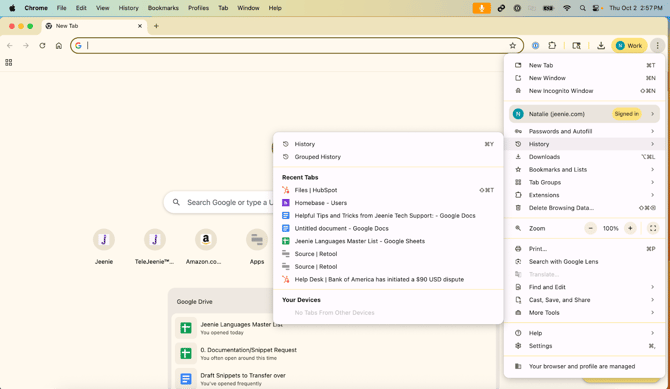
- Navigate to the 3 dots on the right side of the screen
- Toggle over History in the first drop-down box and allow it to open by hovering your mouse
- Click on History in the second drop-down box
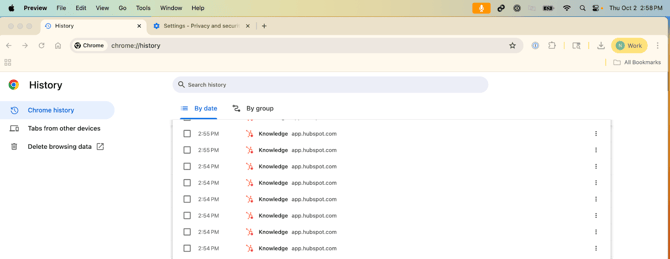
- The History tab will load.
- Click "Delete Browsing Data" on the left-hand side of the screen in the menu bar.
- The "Delete Browser Data" will open a new pop-up screen.
- In "Time Range", toggle to "All Time".
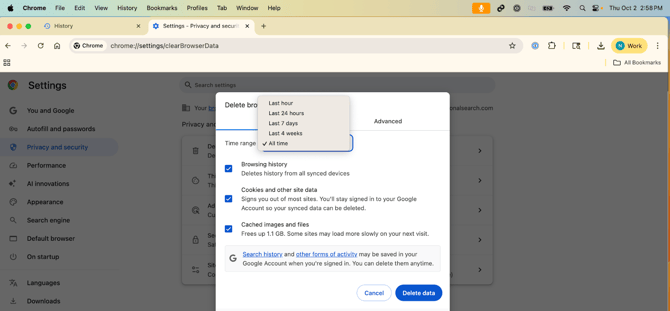
- Click "Delete Data".
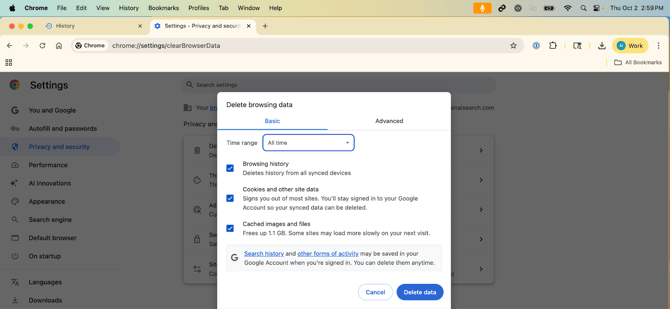
This may take a few minutes to process, depending on how long ago you last cleared your browser history. It will notify you once complete.
Mozilla Firefox:
- From the main home screen when first loading a new tab, hit the 3 lines in the upper right-hand corner.
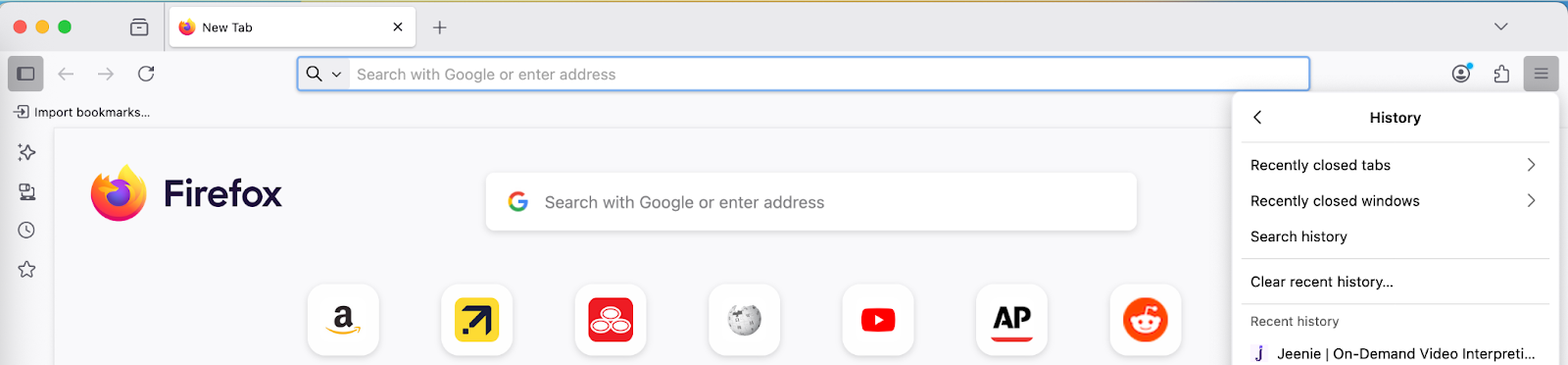
- Toggle over "History" in the first drop-down box and allow the second drop-down to populate.
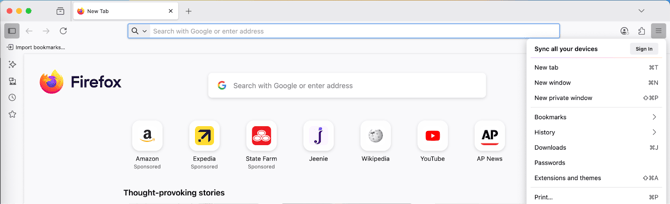
- Then, click “Clear Recent History”
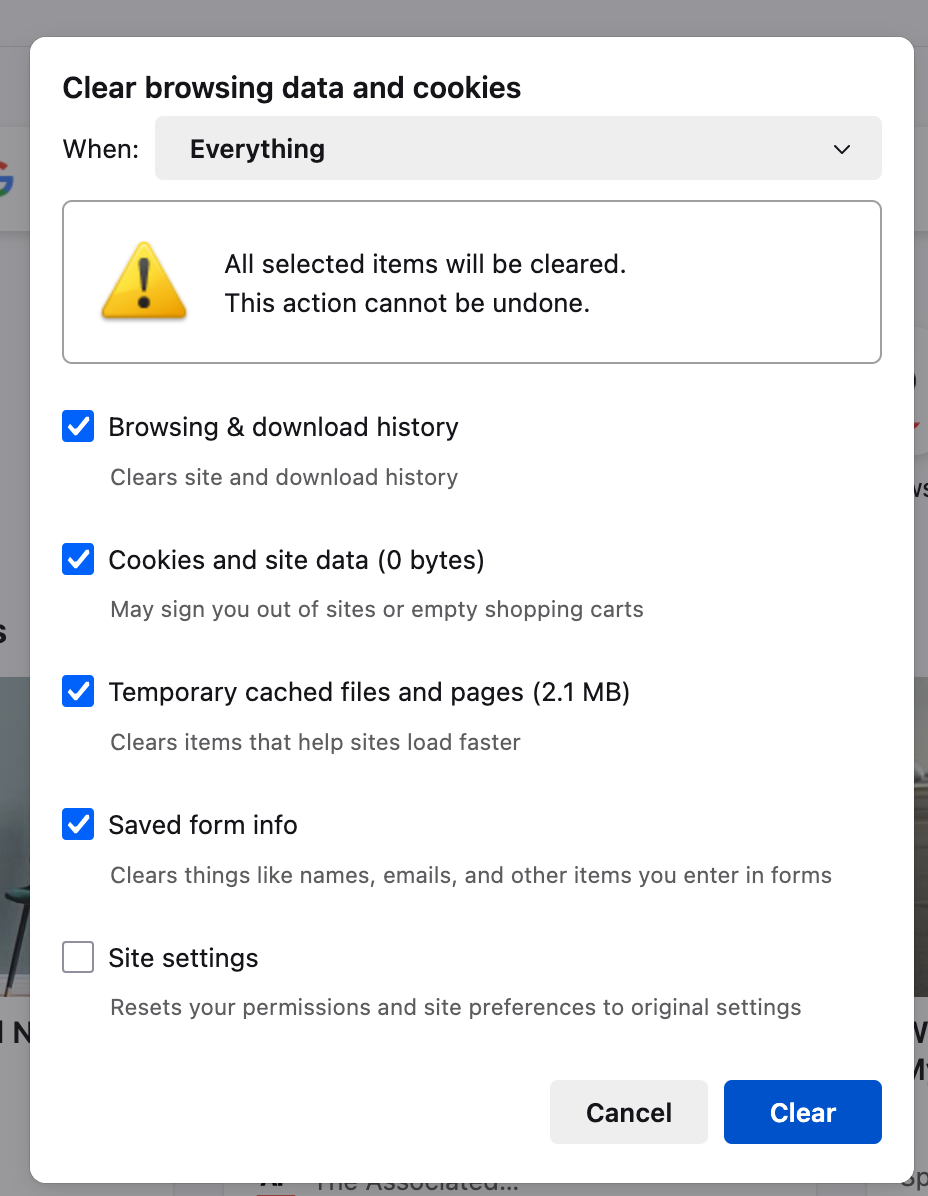
- In the "When:" drop-down at the top, toggle to "Everything"
- Click "Submit"