-1.png?width=160&height=50&name=Jeenie%20Logo-FullColor%20(7)-1.png)
+In this Article:
Before the session begins
Do I need to download any applications in order to properly service calls?
No, all web platforms allow Jeenie interpreters to join their sessions from a computer without installing any additional software.
Joining the Session:
- Log into your Jeenie Account
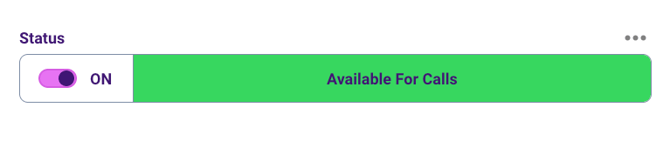
- Set your status as Available
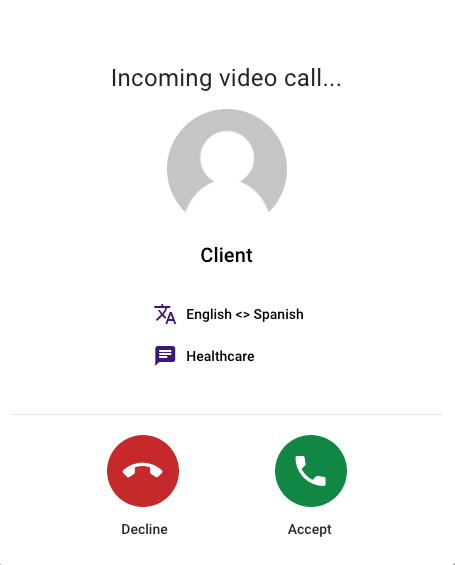
- The call will ring into your station as any other call would, click Accept.
- You will get notice to join via the platform selected by the customer (Microsoft Teams, Google Meet,Zoom, Doxy or Webex) . Click Join Call and follow each platform’s instructions. See the examples below
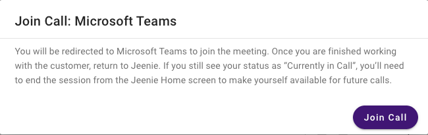
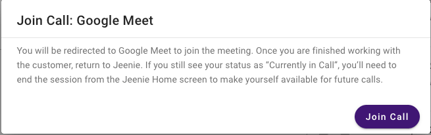
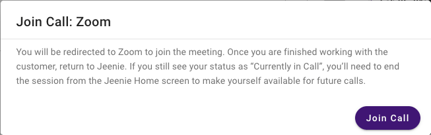
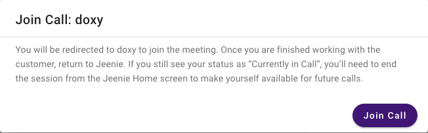
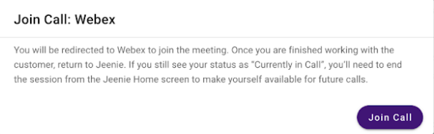
Instructions will vary depending on the platform and the specific setup used by the client. Make sure to follow the appropriate steps based on the platform where the session will take place to ensure a successful connection.
Important: Your call minutes will begin counting only after you join the session through the pop-up message.
If you don't join the meeting once you've accepted the call and been directed to the new platform, you will not be paid.
After the Session Ends
- Once the client confirms that the session is over, they will end the call from their side, and your status on the Jeenie App will automatically return to “Available.” You may then close the browser or app tab where the session occurred — but do not close the Jeenie App.
- If for any reason your status does not switch back to “Available” and you still see yourself as “Currently in a Call”, follow our Call Status Shows: In Call FAQ
Additional FAQs
What do I need to do before joining an off-platform session from a computer?
Make sure you're logged into the Jeenie App and that your status is set to “Available.” The session will appear just like any other incoming Jeenie call.
Do I still need to use the Jeenie App?
Yes, the Jeenie App is still required. All sessions, whether integrated or off-platform, will appear in the Jeenie App. You’ll use the app to accept calls, view session details, join the call through the pop-up prompt, and properly end the session once it’s complete.
The Jeenie App tracks your availability and connection. Not being logged in to the Jeenie App means you won’t receive any calls.
How do I know which platform the session will take place on?
After accepting the session, a pop-up message will appear with a heading that indicates the platform: Zoom, Microsoft Teams, Google Meet, Doxy or Webex.
How do I join the session once I’ve accepted it?
Click on “Join Call” in the Jeenie App. This will automatically redirect you to the appropriate platform.
What happens after I click “Join Call”?
You will be redirected to a new tab based on the client’s chosen platform.
Do I need to do anything after being redirected?
Yes. Follow the platform-specific prompts to grant microphone and camera permissions and join the session.
What if there is a passcode I need to enter?
If you receive a passcode prompt, then the client has not changed that setting on their third-party account and you will not be able to enter the call.If that is the case, you may end the call, fill out the post-session comments and go back online.
Do I need separate accounts for each platform?
No, it’s not necessary to have separate accounts. The system will automatically prompt you to a new tab where the call will take place, allowing you to join the session without needing a personal account for the platform.
Is it necessary to download the apps?*
Having the applications downloaded will create a smoother experience for you, but it is not necessary to have the application(s) downloaded for other platforms as long as you are taking the calls from a computer.
Will this apply to scheduled calls as well?
No, the process for scheduled calls remains the same. The off-platform call feature applies only to on-demand calls, and does not affect how scheduled sessions are handled.
What if the client calls on the Jeenie App and asks to move off platform?
If a customer asks you to take a call from the Jeenie platform to another platform, you must tell them that is not allowed and they will have to hang up and call again using the feature.
Disclosing your personal information, or joining an off-platform link, is a violation of Jeenie’s terms and could result in your removal from the platform. Read our Protecting Your Privacy FAQ to learn more.