-1.png?width=160&height=50&name=Jeenie%20Logo-FullColor%20(7)-1.png)
In this Article:
Guest Limits: Maximum of 2 Guests at a Time
Web Browser
There are two ways to add a participant on the web browser:
- By Audio — Dial a phone number or send an email (audio only)
- By Video — Send an email with a link so the participant can join with audio and video
Web: Dial Out by Phone Number (Audio Only)
Use this method when the client gives you a phone number to call.
Step 1: Open the Participants Panel
Click the people icon in the bottom toolbar of your session screen to open the Participants panel.

Step 2: Select "By Audio"
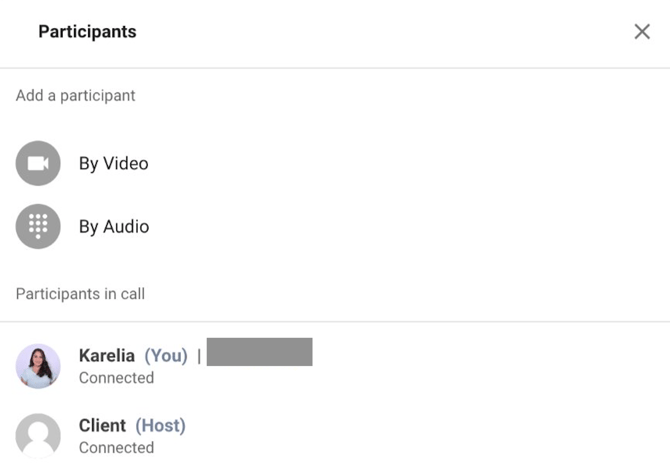
In the Participants panel, you will see two options under "Add a participant": By Video and By Audio. Select "By Audio".
Step 3: Select "Dial phone number"
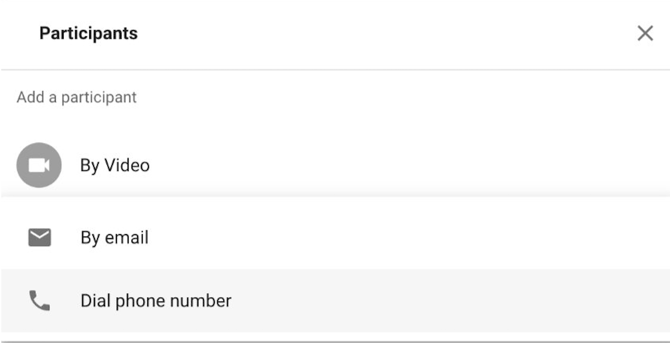
After selecting "By Audio", two sub-options appear: "By email" and "Dial phone number". Select "Dial phone number".
Step 4: Enter the Phone Number and Send
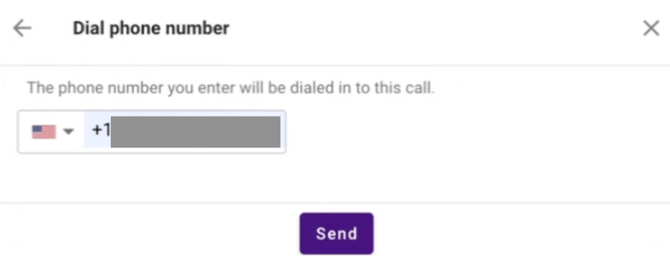
A dialog titled "Dial phone number" appears. Enter the phone number provided by the client, then click the "Send" button. You can use the country flag dropdown to select the correct country code.
Step 5: Dialing Confirmation
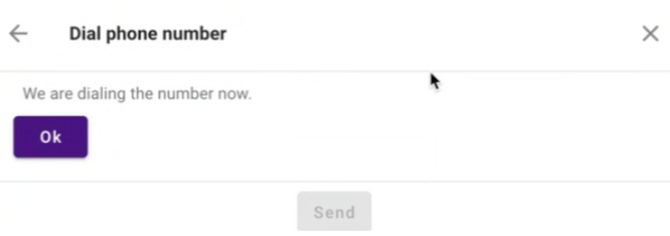
A confirmation message appears: "We are dialing the number now." Click "Ok" to dismiss the message and return to the session.
Step 6: Three-Way Call is Active
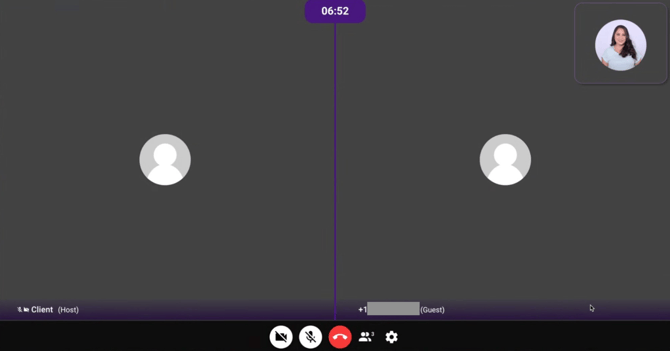
Once the third party answers, they join the session as a Guest. The session view now shows two boxes — one for the Client (Host) and one for the Guest — with your self-view in the top-right corner.
Step 7: Guest Appears in Participants List
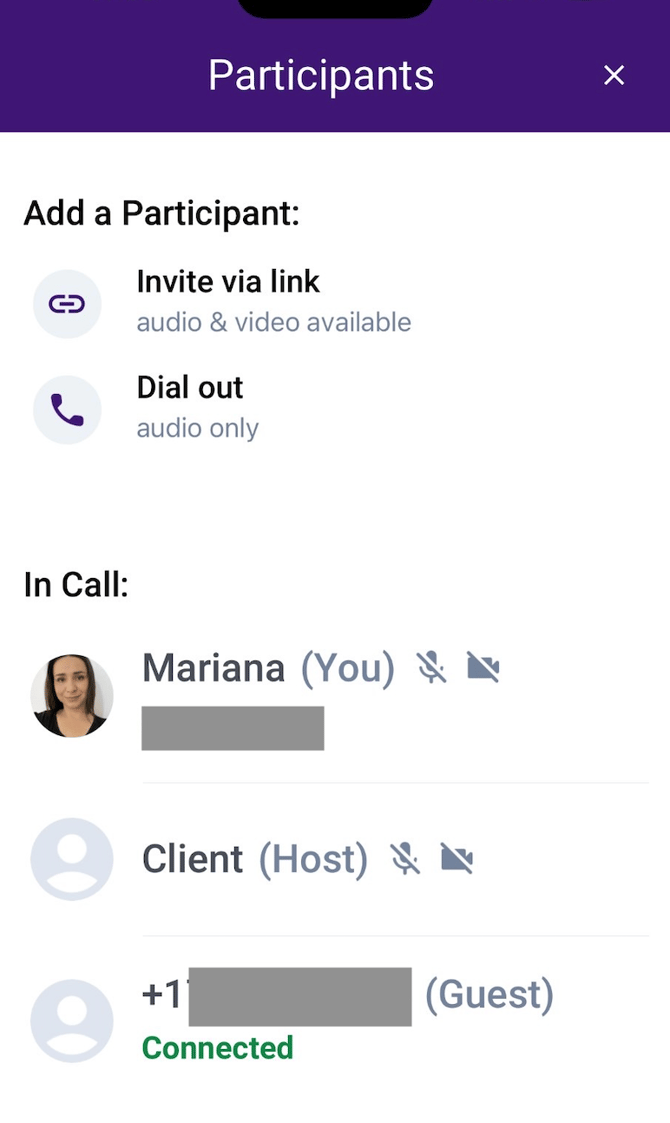
If you open the Participants panel again, you will see the new Guest listed under "Participants in call" with a "Connected" status. The guest is identified by their phone number and labeled as (Guest).
Web: Invite By Video (Email Link — Audio & Video)
Use this method when the client asks you to add someone who needs to join with both audio and video. The third party will receive an email with a link to join the call.
Step 1: Open the Participants Panel
Click the people icon in the bottom toolbar to open the Participants panel.
Step 2: Select "By Video", then "By email"
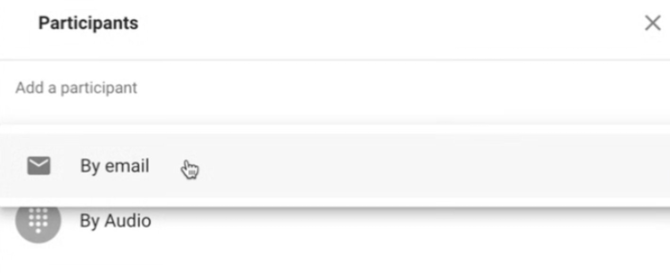
In the Participants panel, select "By Video". This will expand to show the "By email" option. Click "By email".
Step 3: Enter the Email Address and Send
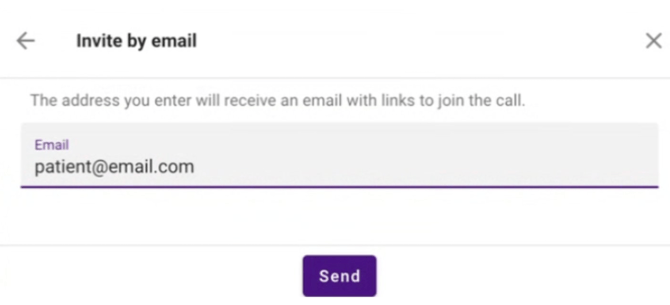
A dialog titled "Invite by email" appears. Enter the third party's email address and click "Send". The recipient will receive an email with a link to join the call.
Step 4: Invitation Sent Confirmation
A confirmation message appears: "Your invite has been sent!" Click "Ok" to dismiss and return to the session.

What the Third Party Sees
The following steps happen on the third party's side after they receive the invitation.
Step A: The third party receives an email from Jeenie with a "Join Call" button.

Step B: After clicking "Join Call", they are taken to a Jeenie page where they can preview their camera and microphone. They click "Join" to enter the call.
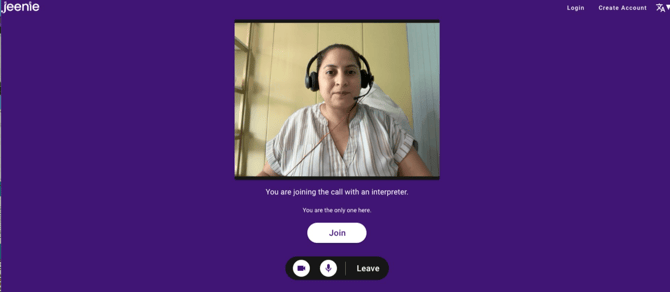
Step C: They are asked to enter their name, which will be visible to others on the call. After entering their name, they click "Join call".
Step 5: Three-Way Video Call is Active
Once the third party joins, the session view shows two boxes — one for the Client (Host) and one for the Guest — with your self-view in the top-right corner. The Guest is now identified by the name they entered (e.g., "Patient").
Mobile App
There are two ways to add a participant on the mobile app:
- Dial out — Call a phone number directly (audio only)
- Invite via link — Send a text message with a join link (audio & video available). Note: SMS invites are only available in the US and Canada.
Mobile: Dial Out (Phone Call — Audio Only)
Use this method when the client gives you a phone number to call and the third party only needs audio.
Step 1: Open the Participants Panel
From the session screen, tap the people icon in the bottom-right corner of the toolbar.

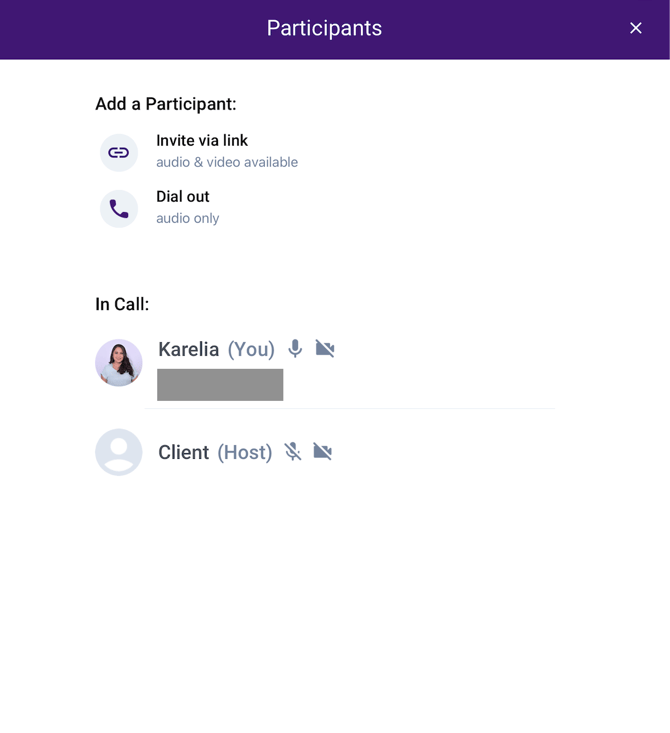
Step 2: Select "Dial out"
In the Participants panel, tap "Dial out" (labeled "audio only").
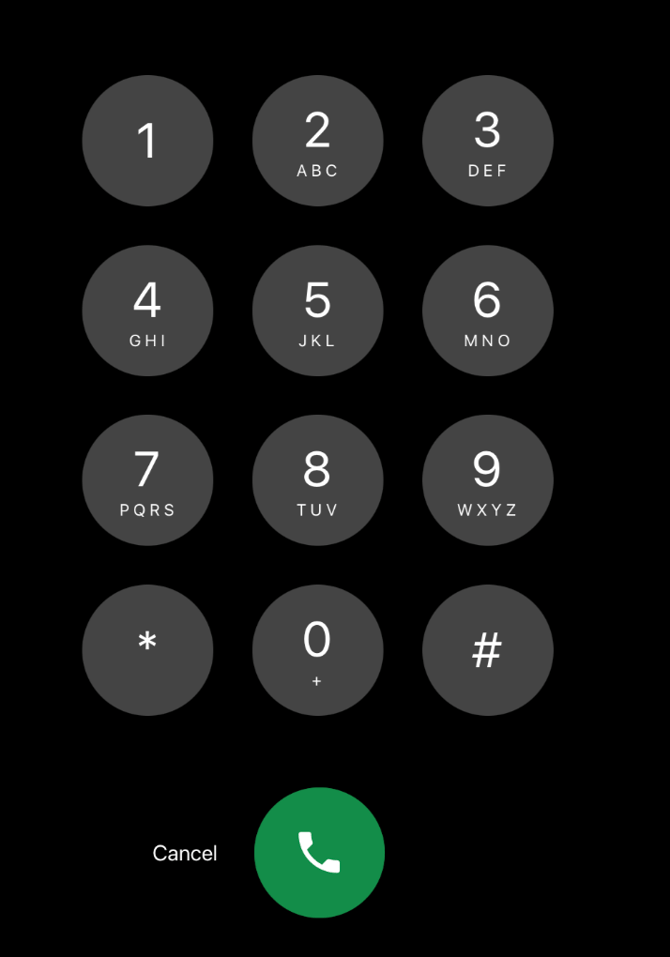
Step 3: Enter the Phone Number and Dial
Enter the phone number provided by the client and tap the button to initiate the call. The system will dial the number and connect the third party to the session as a Guest.
Step 4: Guest Connects
Once the third party answers, they will appear in the Participants panel as a (Guest) with a "Connected" status, identified by their phone number.
Mobile: Invite via Link (Text Message — Audio & Video)
Use this method when the client asks you to add someone who needs to join with audio and video. The third party will receive a text message with a link to join the call.
Step 1: Open the Participants Panel
From the session screen, tap the people icon in the bottom-right corner of the toolbar to open the Participants panel.
Step 2: Select "Invite via link"
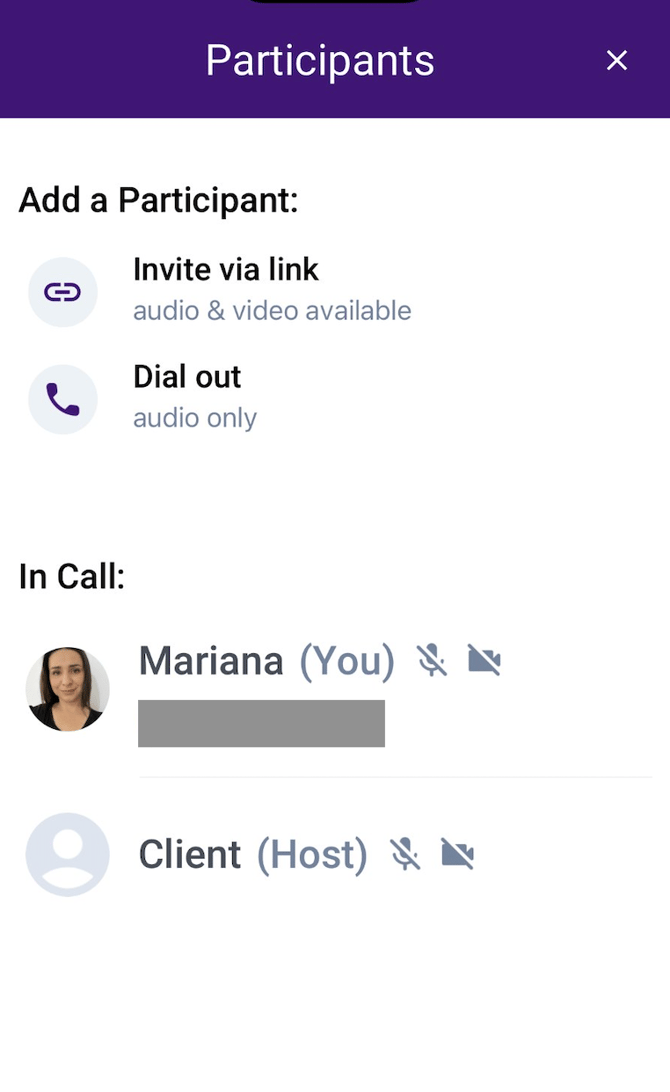
In the Participants panel, you will see two options under "Add a Participant": "Invite via link" (audio & video available) and "Dial out" (audio only). Tap "Invite via link".
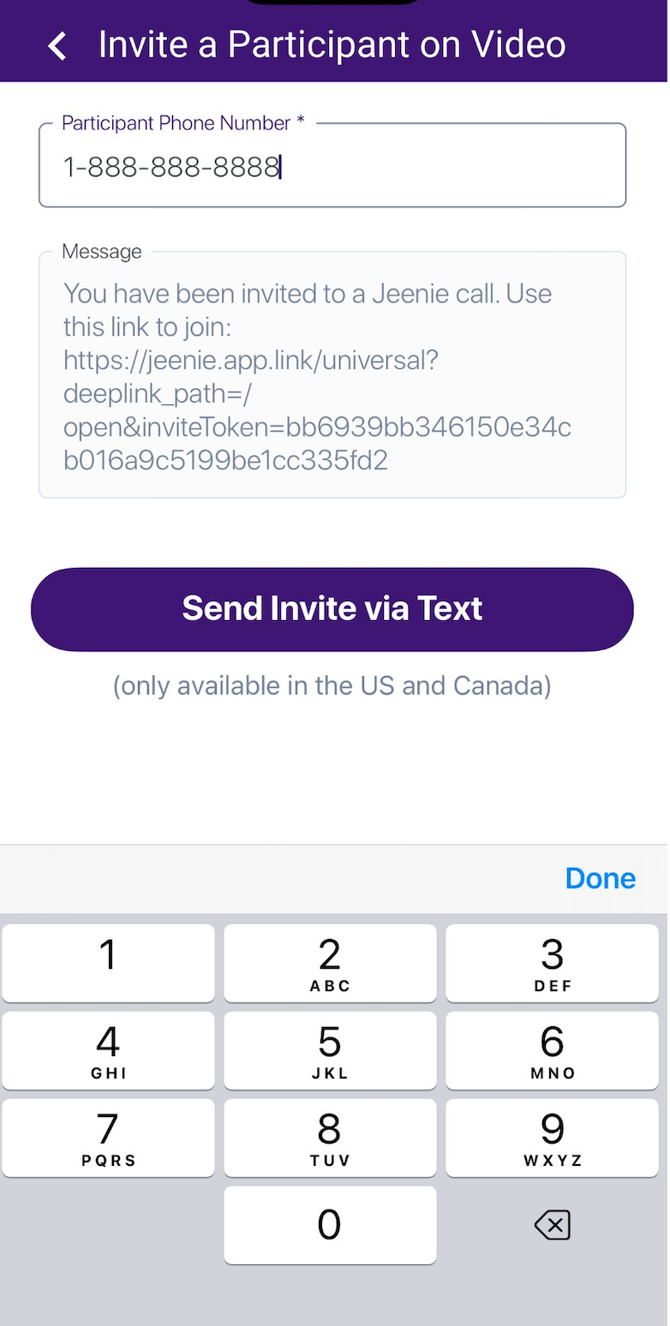
Step 3: Enter the Phone Number
A screen titled "Invite a Participant on Video" appears. Enter the third party's phone number in the "Participant Phone Number" field. A pre-filled message with a Jeenie join link is shown below.
Step 4: Send the Invite via Text
After entering the phone number, tap "Send Invite via Text" to send the join link as a text message to the third party. Note: this option is only available for US and Canadian phone numbers.
Step 5: Guest Connects and Appears in Participants List
Once the third party clicks the join link and enters the call, they will appear in the Participants panel as a (Guest) with a "Connected" status.
Guest Limits: Maximum of 2 Guests at a Time
Some accounts have a limit on the number of guests who can be on a call at the same time. Here is what you need to know:
The limit is 2 guests at a time. This means that a call can have up to 2 guest participants connected at the same time. This does not limit the total number of guests who join during the entire call — only how many can be on the call at once. For example, if one guest leaves, another guest can be added to take their place.
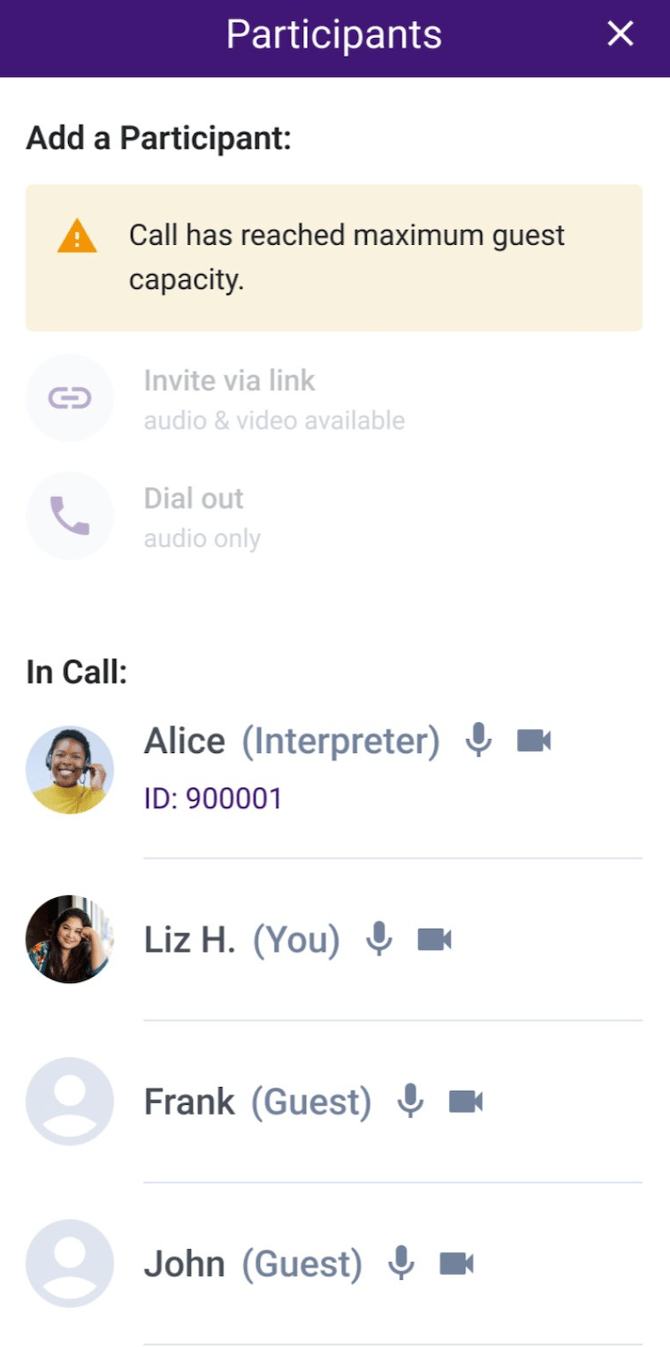
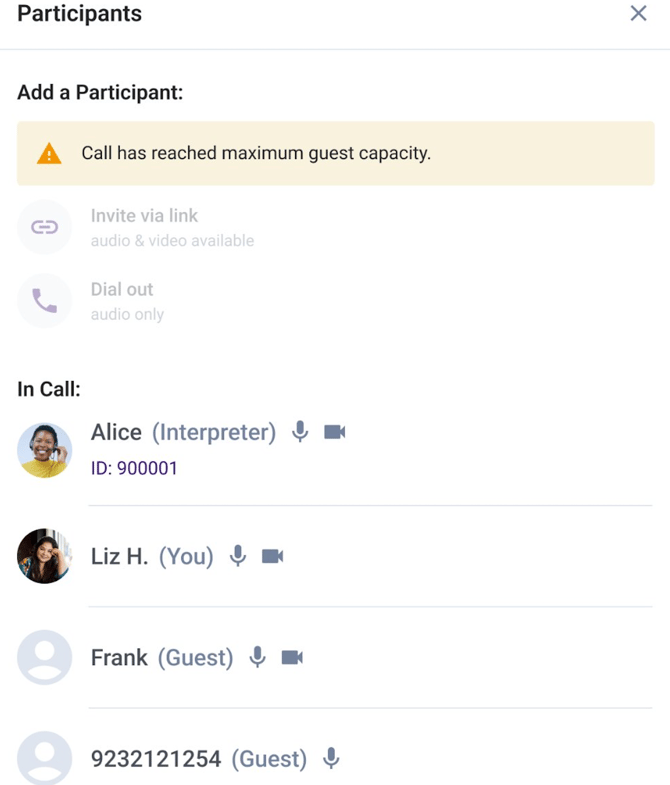
When the limit is reached, you will see a yellow banner in the Participants panel that reads: "Call has reached maximum guest capacity." The "Invite via link" and "Dial out" buttons will also be grayed out so you cannot add more guests until one leaves or is removed.
What the Guest Limit Looks Like
On Mobile:
On Web Browser:
What Happens if You Try to Add a Guest After the Limit is Reached
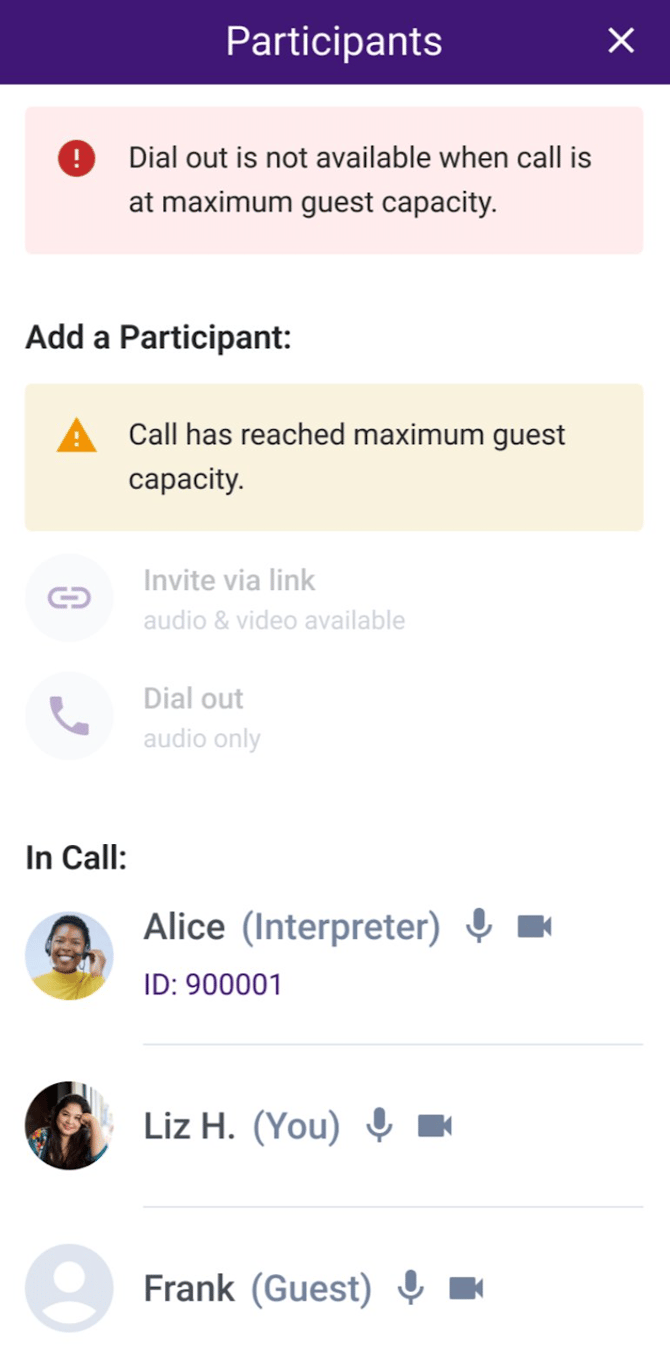
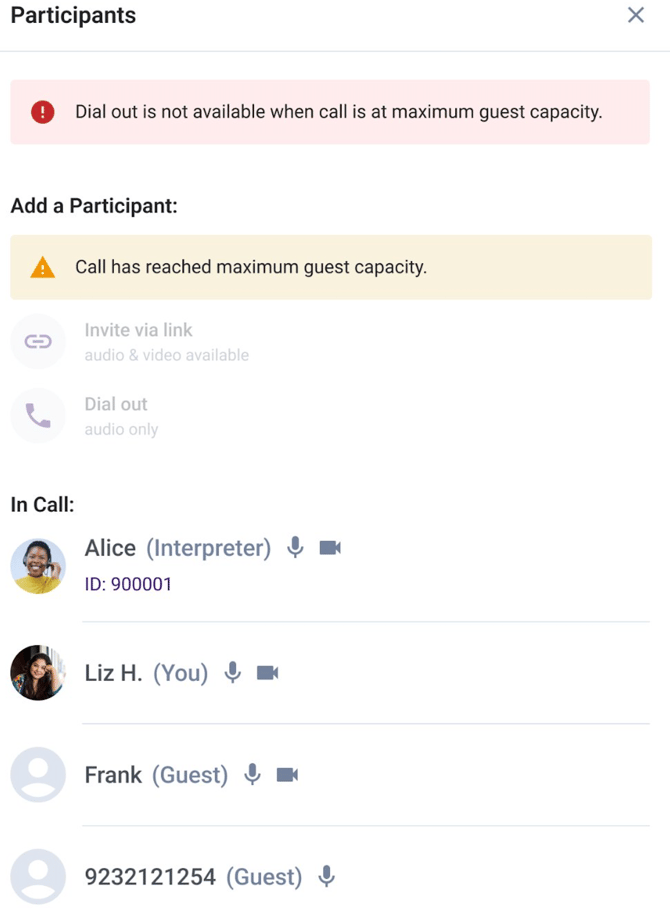
Sometimes you may start the process of inviting a guest when there is still room, but by the time you finish, another guest has already joined and the limit has been reached. In this case, the system will not send your invitation. Instead, you will see a red banner at the top of the Participants panel that reads: "Dial out is not available when call is at maximum guest capacity." This red banner will disappear after a few seconds.
On Mobile:
On Web Browser:
Important Notes About the Guest Limit
- The guest limit information only appears in the Participants panel. You will not see it on the main session screen.
- The banners and grayed-out buttons update in real time. As soon as a guest leaves the call, the buttons will become active again and the yellow banner will disappear.
- The client will see the same banners, with a slightly different message: "Call has reached maximum guest capacity. Please remove a guest to add someone new."
- If a client has questions about this policy, please ask them to submit a support ticket.
Frequently Asked Questions
Q: Can I remove someone I've added to the call?
A: Yes. This option is currently available to the client and the interpreter. Remove a guest in one of two ways:
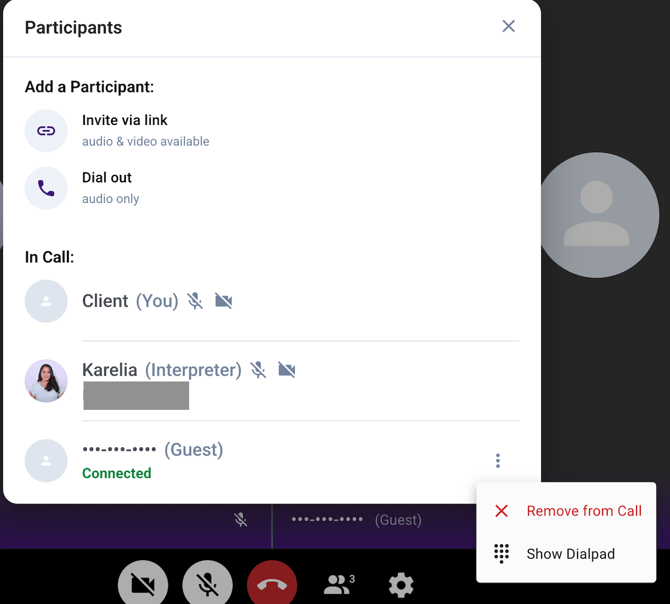
Option 1: From the Participants panel. Tap the people icon at the bottom of the screen to open the Participants panel, then tap the three-dot menu (⋮) next to the Guest and select "Remove from Call".
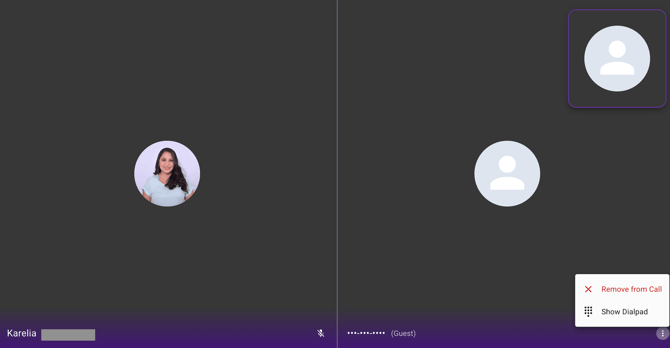
Option 2: From the session view. Tap the three-dot menu (⋮) in the bottom-right corner of the Guest's video/audio box and select "Remove from Call".
Q: Will others on the call see the phone number of the participant that I have invited?
A: No, the number will be masked.
Q: Can I send a text invite to international numbers?
A: No, the "Send Invite via Text" option in the mobile app is only available for US and Canadian phone numbers. For international participants, use the web browser version to send an email invitation instead.
Q: What is the difference between "Invite via link" and "Dial out"?
A: "Invite via link" (or "By Video" on web) sends a join link that allows the third party to connect with both audio and video. "Dial out" (or "By Audio" on web) calls a phone number directly, so the third party joins with audio only.
Q: How many guests can be on a call at the same time?
A: Some accounts have a limit of 2 guests connected at the same time. If the limit is reached, you will see a yellow banner in the Participants panel and the invite buttons will be grayed out. You can add a new guest after an existing guest leaves or is removed from the call. There is no limit on the total number of guests who can join during the entire call.
Q: I tried to invite a guest but saw a red error message. What happened?
A: This means the guest limit was reached while you were in the process of sending the invitation. The system did not send your invite. Wait for a guest to leave or ask the client to remove a guest, then try again.
Q: Does the guest limit apply to all accounts?
A: No. The guest limit currently applies to certain accounts only. If you do not see the yellow banner or grayed-out buttons, the limit does not apply to your current session.
Need Help?
If you have any questions about the third-party invite features, please contact the Jeenie support team at linguists@jeenie.com.